Handle Asset Location With Care

An old question has become new again.  You have tax-deferred accounts like IRAs and Roth IRAs, and you have accounts that pay taxes every year on the income they receive.  Where do you put different types of assets? 

The answer is that you want to put the most tax-inefficient investments inside the tax-deferred accounts.  The most notoriously tax-inefficient investments, historically, have been bond funds, commodities futures funds and real estate investment trusts (REITs), which all generate ordinary income that can be taxed at 39.6% plus the 3.8% Medicare tax for higher-income taxpayers.  The Roth IRA, which shelters all future returns from taxes of any sort, can be a great place for mutual funds that invest in small cap stocks, since they tend to have high turnover and historically have provided the highest gains.  

In taxable accounts, you might put growth stocks which, if you hold them for more than a year, will have their price appreciation taxed at a maximum rate of 20% (or 23.8% with the Medicare surtax).  Of course, you can choose to hold individual securities for much longer periods, which gives you tax deferral on its own–and, if the stocks are held until death, the heirs get a step-up in basis, which basically means any rise in value is never taxed.  Municipal bonds which qualify for an exemption from federal taxes are also good candidates for the taxable portion of your investment accounts. 

What makes this debate new again?   Higher ordinary income tax rates, and potentially higher capital gains tax rates (up from 15% to 23.8% for tax filers who have to pay the new Medicare surtax) have introduced some gray areas, as have the historically low rates on bonds.  When bonds were delivering upwards of 10% on the investment dollar, putting them in an IRA was a no-brainer.  But what if you’re cautious about rising rates, and you’ve shortened maturities in a yield-starved market, so your return is closer to 1%?   Suddenly, these funds are no longer a huge tax concern. 

At the same time, REITs offer tax benefits like depreciation, which becomes more valuable at higher ordinary income rates.  And persons in retirement may see their tax rates fall from above 39% down to 15%, which decreases the benefits of astute asset location, and might raise the value of rebalancing each year across all accounts. 

Another consideration for retirees is the mandatory withdrawals they have to take from their IRA account after they reach age 70 1/2.  If the IRA is holding all the income-generating investments, then systematically liquidating those holdings means creating a higher exposure to stocks and a generally more volatile portfolio as you age–which may be the opposite of what is desired.

Saving taxes through asset location strategies is one of those rare opportunities to get additional dollars without taking additional risk–but a mindless focus on taxes without looking at the bigger picture can result in unintended consequences.  The rules of thumb need to be informed by your tax bracket and other aspects of your individual circumstances–with an eye on the ever-changing tax and interest rates that Congress and the markets throw at us. 

Source:

http://www.financial-planning.com/fp_issues/43_8/asset-allocation-rules-2685905-1.html?zkPrintable=1&nopagination=1


 Many thanks to Bob Veres, publisher of Inside Information for his help writing this blog post.


The Rollercoaster Effect

There are two kinds of investor in this world.  One type pays close attention to the daily (and sometimes hourly) flood of information, looking for a reason (any reason) to jump in or out of the markets.  The other kind of investor is in for the long haul, and recognizes that the markets are going to experience dips and turns.  If these people are particularly wise, they know that the dips and turns are the best friend of the steady, long-term investor, because as you put money into the markets, as you re-balance your portfolio, you gain a little extra return from the occasional opportunities to buy at bargain prices.

Last week, the investment markets made an unusually sharp turn on the roller coaster, and showed us once again the sometimes-comical fallacy of quick trading.  See if you can follow the logic of the events that led to last week’s selloff.  Federal Reserve Board Chairman Ben Bernanke and the Federal Open Market Committee issued a statement saying that the U.S. economy is improving faster than the Fed’s economists expected.  Therefore (the statement went on to say) if there was continued improvement, the Fed would scale back its QE3 (quantitative easing) program of buying Treasury and mortgage-backed securities on the open market, and ease back on stimulating the economy and keeping interest rates low.

Everybody knows that the Fed will eventually have to phase out its QE3 market interventions, and that this would be based on the strength of the economy, so this announcement should not have stunned the investing public.  Nothing in the statement suggested that the Fed had any immediate plans to stop buying altogether; only ease it back as it became less necessary.  The statement said that this hypothetical easing might possibly take place as early as this Fall, and only if the unemployment rate falls faster than expected.  At the same time, the Fed’s economists issued an economic forecast that was more optimistic than the previous one.

The result?  There was panic in the streets–or, at least, on Wall Street, where this bullish economic report seems to have caused the S&P 500 to lose 1.4% of its valueon Wednesday and another 2.5% on Thursday.

In addition–and here’s where it gets a little weird–stocks also fell sharply in Shanghai and across Europe, and oil futures fell dramatically.  How, exactly, are these investments impacted by QE3?

The only explanation for last week’s panic selloff is that thousands of media junkie investors must have listened to “we plan to ease back on QE3 when we believe the economy is back on its feet again,” and heard: “the Fed is about to end its QE3 stimulus!”

It’s possible that the investors who sold everything they owned on Wednesday  throughFriday will pile back in this week, but it’s just as likely that the panic will feed on itself for a while until sanity is restored.  If stocks were valued daily based on pure logic, on the real underlying value of the enterprises they represent, then the trajectory of the markets would be a long smooth upward slope for decades, as businesses, in aggregate, expanded, moved into new markets, and slowly, over time, boosted sales and profits.  The roller-coaster effect that we actually experience is created by the emotions of the market participants, who value their stocks at one price on Wednesday, and very different prices on Thursday and Friday.

The long-term investor has to ask: did any individual company in my investment portfolio become suddenly less valuable in two days?  Did ALL of their enterprise values in aggregate become less valuable within 48 hours–and at the same time, did Chinese and European stocks and oil also suddenly become less valuable?  Phrased this way, the only possible answer is: no.  And if that’s your answer, then you have to assume that eventually, people will eventually be willing to pay the real underlying value of the stocks in the market, and the last couple of days will be just one more exciting example of meaningless white noise.

With all that said, it’s prudent to be cautious about going “all in” on this pullback in the market and to perhaps take some hard-earned partial profits on positions you’ve been holding. In our clients’ portfolios, we’ve upped our hedges and taken partial profits on short-term positions, but are still holding the majority of our equities and bonds.

With the action in the markets last week, we officially have the beginnings of a downtrend, but that can be very short-lived in this QE environment, so we remain on our toes. Be sure to consult with your advisor if you’re uncomfortable with your holdings or have trouble sleeping at night because of your positions. Nothing in this message should be construed as investment advice or suggestions to buy or sell any security.

If you have any questions or comments, please don’t hesitate to contact us or post them here. We are a fee-only fiduciary financial planning and investment advisory firm that always puts your interests first.

Have a great week!

Sam

Sam H. Fawaz CFP™, CPA
Registered Investment Adivsor Representative
NAPFA Registered Fee-only Advisor
Financial Planning Asssociation Member
(734) 447-5305
(615) 395-2010
http://www.ydfs.com

TheMoneyGeek thanks Bob Veres, publisher of Inside Information for his help with writing this guest post.

Investing by Population

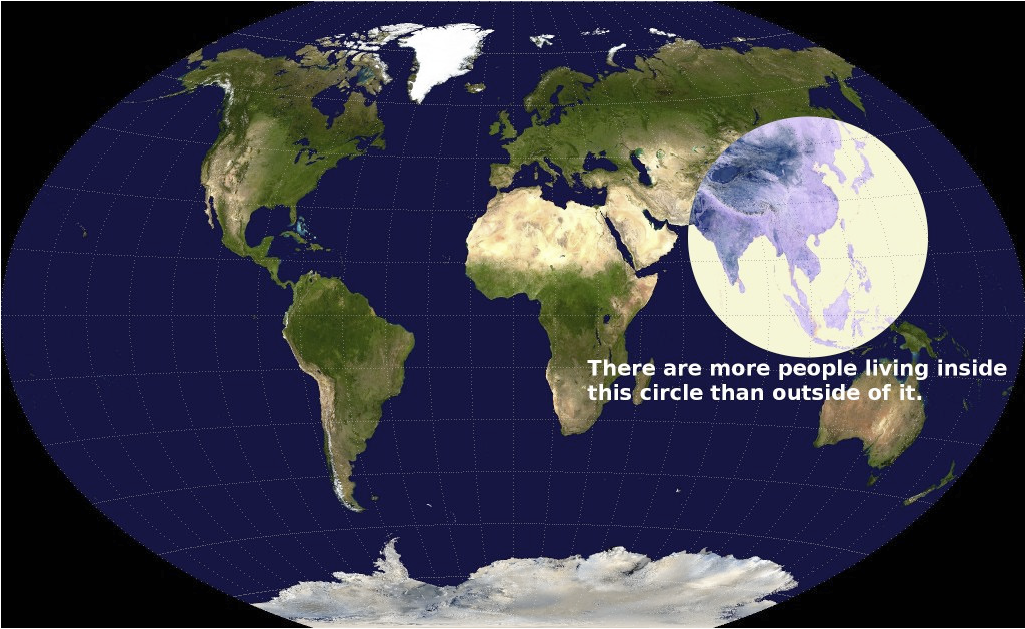
The map you see below has been widely circulated among professional investors, and it tells an astonishing story.  The circle encloses less than an eighth of the world’s total land mass, but it includes more than half of the world’s population.  Within that circle are the world’s two most populous nations: China, with 1.35 billion people and India with 1.22 billion, plus countries that rank 4th in population (Indonesia, with 251 million), 8th (Bangladesh, with 164 million), 10th (Japan, with 127 million), 12th (Philippines, with 106 million), 13th (Vietnam, with 92 million), 20th (Thailand, with 67 million), 25th and 26th (Burma and South Korea, both with around 50 million).  Also in the circle: Nepal, Malaysia, North Korea, Taiwan, Sri Lanka, Cambodia, Laos, Mongolia and Bhutan.

Add them up and you have 3.64 billion total citizens, or roughly 51.4% of the world’s people.

CA - 2013-5-12 - World Map

So the immediate question is: why isn’t my investment portfolio 50% invested in this region of the world?  Why isn’t my portfolio weighted by population?

The answer is simple.  While this circle represents the world’s center of gravity as measured by people, it also surrounds some of the least efficient places to deploy your investment resources.  Take China, for example, where the same company’s shares trading on the Hong Kong stock exchange routinely cost two or three times more than shares trading in Shanghai, where Chinese residents buy and sell their stocks.  Both shares carry identical claims on assets and profits.

Why the difference?  Chinese residents invest through so-called A-shares, which most foreign buyers are forbidden to trade in.  The rest of us buy B shares trading in Shanghai or Shenzhen, or H shares traded in Hong Kong, or red chips if the companies are state-owned, or P chips if the Chinese company is incorporated outside of the mainland, or N shares for certain Chinese companies listed on the U.S. trading floors.  These other share classes share one thing in common: they trade at higher multiples than the relative bargains offered to Chinese citizens.  China has granted several foreign firms and investment groups permission to own limited amounts of A shares, but it’s not easy to know, from the outside, which firms have an inside track.

Another problem with investing in China is transparency–or, more precisely, the lack of it.  U.S.-based public companies are required to disclose their financials in great detail, and large accounting firms are required to audit and sign off on the accuracy of those statements.  In China, accounting standards run from lax to nonexistent, and the Chinese government can forbid foreign access to the books and records of any company on the theory that this might reveal “state secrets.”

Okay, so what about India?  Here again, the government forbids non-Indian investors to buy shares of publicly-traded companies. Only six of the 30 companies listed in the BSE SENSEX index–the Indian equivalent of the S&P 500–allow shares to trade on the U.S. exchanges.  A few Indian-focused exchange traded funds are allowed to buy shares.

Indonesia’s stock exchange, meanwhile, could be charitably described as “undeveloped.”  Currently, it facilitates trading in just 462 listed companies, which have a combined market value of $462.78 billion–almost exactly the current market capitalization of Apple Computer.  Trading activity on the Jakarta stock exchange makes up less than one tenth of one percent of the global investment flow.

Of course, the Japanese stock market is large and robust, but investors in Japanese stocks have been less-than-thrilled by their performance since 1991.  The Nikkei 225 Stock Market Index peaked at just under 40,000 22 years ago, and now is worth about 12,500.

There is no question that eventually the people living inside of this interesting circle will start punching their weight in the global economy and provide thriving investment opportunities that will conform to more stringent world standards.  For now, a prudent investor will avoid investing by population.  You should have some money in the emerging economies and watch closely the new developments in Japan, where the prime minister may be shaking the economy out of a decades-long slump.  There may come a time when it will be wise to put more than half of your investments into eastern Asia, but that time hasn’t quite arrived yet.

Sources:

http://www.washingtonpost.com/blogs/worldviews/wp/2013/05/07/map-more-than-half-of-humanity-lives-within-this-circle/

http://www.forecast-chart.com/historical-nikkei-225.html

http://www.indexuniverse.com/sections/white-papers/15113-the-complete-guide-to-chinese-share-classes.html?fullart=1&start=5

http://seekingalpha.com/article/829631-how-can-americans-invest-in-indian-stocks

http://en.wikipedia.org/wiki/Jakarta_Stock_Exchange

http://en.wikipedia.org/wiki/List_of_stock_exchanges

http://www.advfn.com/nyse/newyorkstockexchange.asp

http://en.wikipedia.org/wiki/Indonesia_Stock_Exchange

http://www.usnews.com/opinion/blogs/economic-intelligence/2013/01/11/the-us-must-challenge-chinas-accounting-standards

TheMoneyGeek thanks Bob Veres, publisher of Inside Information for this guest post.

Understanding the Fees Associated With Your Retirement Plan

I hope you’re enjoying a safe and fun Memorial Day weekend as we remember those who sacrificed with their lives. We sincerely appreciate the service and sacrifices the women and men of the armed forces make every day to help keep us safe.

There’s a little secret associated with your workplace-sponsored retirement plan. Most participants think their plan is free — that it doesn’t cost them anything to join, contribute, and invest. Unfortunately, that’s not entirely true.

While employees typically aren’t charged any out-of-pocket costs to participate in their plans, participants do pay expenses, many of which are difficult to find and even more difficult to calculate. New regulations from the Department of Labor (DOL), which oversees qualified workplace retirement plans, should make it easier for participants to locate and comprehend how much they are paying for the services and benefits they receive.

Here’s a summary of the information you should receive.

1.     Investment-related information, including information on each investment’s performance, expense ratios, and fees charged directly to participant accounts. These fees and expenses are typically deducted from your investment returns before the returns (loss or gain) are posted to your account. Previously, they were not itemized on your statement.

2.     Plan administrative expenses, including an explanation of fees or expenses not included in the investment fees charged to the participant. These charges can include legal, recordkeeping, or consulting expenses.

3.     Individual participant expenses, which details fees charged for services such as loans and investment advice. The new disclosure would also alert participants to charges for any redemption or transfer fees.

4.     General plan information, including information regarding the investments in the plan and the participant’s ability to manage their investments. Most of this information is already included in a document called the Summary Plan Description (SPD). Your plan was required to send you an SPD once every five years, now they must send one annually.

These regulations have been hailed by many industry experts as a much-needed step toward helping participants better understand investing in their company-sponsored retirement plans. Why should you take the time to learn more about fees? One very important reason: Understanding expenses could save you thousands of dollars over the long term.

Calculating Fees and Their Impact on Your Account

While fees shouldn’t be your only determinant when selecting investments, costs should be a key consideration of any potential investment opportunity. For example, consider two similar mutual funds. Fund A has an expense ratio of 0.99%, while Fund B has an expense ratio of 1.34%. At first look, a difference of 0.35% doesn’t seem like a big deal. Over time, however, that small sum can add up, as the table below demonstrates.

Expense ratio Initial investment Annual return Balance after 20 years Expenses paid to the fund
Fund A 0.99% $100,000 7% $317,462 $37,244
Fund B 1.34% $100,000 7% $296,001 $48,405

Over this 20-year time period, Fund B was $11,161 more expensive than Fund A.1 You can perform actual fund-to-fund comparisons for your investments using the FINRA Fund Analyzer.

If you have questions about the fees charged by the investments available through your workplace retirement plan, speak to your plan administrator or human resources department.

When considering whether to roll over your former employer’s 401(k) or other qualified retirement plan to an IRA, keep all these plan fees in mind, in addition to the limited choice of investments in most employer plans. In most cases, the large selection of funds and lower fees at most discount brokerages should tilt the decision towards rolling over your plan when you leave an employer. A fee-only fiduciary advisor can help you evaluate your options and decide whether a rollover is the best choice for you.

If you have any questions about this or any other financial matter, please don’t hesitate to contact us. We are fee-only fiduciary advisers who put your interests first. Not all advisors adhere to this highest standard.

Source/Disclaimer:
1Investments are not FDIC-insured, nor are they deposits of or guaranteed by a bank or any other entity, so you may lose money. Past performance is no guarantee of future results. For more complete information about any mutual fund, including risk, charges, and expenses, please obtain a prospectus. Please read the prospectus carefully before you invest. Call the appropriate mutual fund company for the most recent month-end performance results. Current performance may be lower or higher than the hypothetical performance data quoted. The hypothetical data quoted is for illustrative purposes only and is not indicative of the performance of any actual investments. Investment return and principal value will fluctuate; and shares, when redeemed, may be worth more or less than their original cost.

The Value of Education

Now that college graduation exercises are upon us, you are no doubt hearing reports that young people matriculating from this or that prestigious alma mater are having trouble finding jobs.  The easy conclusion seems to be that a college degree doesn’t matter very much anymore in the new economy.  But that, of course, is a short-term view; younger people have fewer job-related skills than people who have been employed for a few years, so they generally have trouble getting that first job no matter what their education level.

You can see this in the first chart below; older workers, who have presumably more experience in the workplace, tend to have lower unemployment rates than their younger competition.  A recession like 2008-2009 simply reinforced a long-term pattern; it made the jobs situation worse for everybody.  Today’s difficult job market continues to allow employers to put a premium on experience.

Longer-term, however, a college degree does seem to confer huge advantages for getting employment.  Consider the most recent jobless statistics, broken down by education level:

Jobless rate for persons who have not earned a high school degree:  11.6%

Jobless rate for high school graduates with no college training: 7.4%

Jobless rate for persons with some college training or an associate degree: 6.4%

Jobless rate for persons who have earned a bachelor’s degree or higher: 3.9%

Longer-term, as you can see from the second chart below, people who are educated at every level tend to be less likely to be unemployed than those with lower educational attainment.  The better-educated also tend to earn higher incomes over their lifetimes–the most recent statistics compiled by the Pew Research Center suggests that the average high school graduate with no further education will earn about $770,000 over a 40-year worklife, compared with $1.4 million for a worker with a bachelor’s degree.

Image

Parents reading this article, and graduates who are paying off enormous student loans, are no doubt wondering whether Pew was able to factor in the upfront costs of getting the college degree, plus the opportunity cost of four years (or more) spent on campus rather than in the workforce.  Even when these considerable costs are factored in, the net gain for a student who graduated from an in-state four-year public university is about $550,000 over a person’s worklife.  The third chart shows the various disparities in yearly earnings at different ages; you can see that at age 25, the differences are not huge, but over time, college education begins to create significant income separation.

Image

Bottom line?  Ignore the gloomy reports of college graduates having trouble finding work. This has always been a problem, admittedly made worse by today’s weak job market, but not an indictment of the value of a college education.  Education, as George Washington Carver once remarked, is still the golden key that unlocks the doors of opportunity.

Sources:

http://www.pewresearch.org/daily-number/the-monetary-value-of-a-college-education/

http://www.pewsocialtrends.org/2011/05/15/is-college-worth-it/6/#chapter-5-the-monetary-value-of-a-college-education?src=prc-number

TheMoneyGeek thanks Bob Veres, publisher of Inside Information for this guest post.

2013 Consumer Electronics Show Highlights

For the 18th year in a row, I made my annual trek to the International Consumer Electronics Show (CES) in Las Vegas (January 8-11, 2013) along with about 150,000 of my closest friends, including some 10,000 members of the press. Looking for and hoping to capture a glimpse of the latest and greatest gadgets that might be adorning our living rooms, home offices and businesses, we crammed ourselves into crowded booths, aisles and press conferences.

As I’ve said in past articles on the show, attending every year is probably overkill due to the incremental improvements in the “wares” paraded by vendors and announced by large companies, with little in the way of life-changing technology. But as an electronics geek, it’s an addiction that I must feed every year. They say that the first step in addressing an addiction is to first admit you have a problem; so I guess I’m somewhat on my way to rehabilitation.

Regular attendees and readers know that the show is notable for the absence of perhaps one of today’s most influential consumer electronics and technology companies: Apple. The company has never exhibited at CES (and probably never will).  Surprisingly, for the first time in almost two decades, Microsoft, typically there with a huge presence at CES, was also absent, except for a meeting room tucked away in the corners of the show’s exhibit halls.  Gone also was the traditional opening keynote address by Bill Gates and, more recently, Steve Ballmer. I couldn’t help but think that this is another way that Microsoft is trying to imitate Apple–with a lack of presence.

Instead, the opening keynote was handled by Qualcomm’s CEO Dr. Paul Jacobs (with a “cameo” appearance by Steve Ballmer to tout Windows 8 and Windows mobile phones) amid a bizarre sequence of skits about the younger mobile generation.

The show’s recent emphasis continues to be on smart-phones, sharper and smarter flat screen TV’s and more tablet based PC’s and devices based on Google’s Android platform, though Google itself was a no-show as well.  The number of companies willing to make their living by accessorizing all those smart-phones and tablets seemed to make a new high this year.

I found a few noteworthy technologies at the show, though admittedly, I’m somewhat stretching “noteworthy” for some of the things that I’m choosing to write about.  While companies display their prototypes and future production models on the show floor, there’s no guarantee that they’ll make it into your mobile life, office or living room anytime in 2013, if ever. I’ll skip the also-ran tablets and smartphones and focus on the new and distinguishing features and enhancements over prior years.

TV’s Once Again Dominate the Show

As usual, CES 2013 was littered with the latest and greatest high-definition TV’s (HDTV) of varying sizes, features, thinness and smartness.

Organic light emitting diode screens (OLED) seem to be gaining some traction and may finally make their way into consumers’ living rooms. With a brighter and more colorful picture using a fraction of the energy consumption of traditional HDTV’s, OLED TV’s may finally be plentiful and affordable enough in 2013.

The race for the smartest TV’s with features such as voice recognition technology, were abundant as manufacturers seem to be in a race to beat Apple at its own game, their rumored iTV that seems to be in the works. Apple seems to be struggling in getting content providers to bend to their will, much as they did with music providers in their launch of the iTunes music store several years ago. Should the Apple iTV concept come to fruition, I expect that it will provide consumers with an unmatched user experience.

While the TV’s are getting smarter, thinner and even bendable, it’s not clear how much consumers are going to be willing to pay for these extra features. Manufacturers have seemingly resolved themselves to the fact that many watch TV while multi-tasking on their laptops or tablet PC’s.  So companies are starting to build in features that allow their TV’s to be wirelessly controlled, allow collaboration/interaction, and to help fetch content from the internet.

Interestingly, while most HDTV’s available today have the ability to connect to the internet, only about 15% of them are actually connected according to the NPD group, a market research company.

3D HDTV Part Deux

One feature seemingly de-emphasized this year at CES were the 3D-TV’s that so many companies have been touting for a few years now, probably owing to the poor adoption by consumers due literally to the headaches caused by the glasses required to be worn and the dearth of creative 3D available content that truly takes advantage of the medium.

Vizio, the well-known low-priced flat-screen manufacturer, debuted their line of no-glasses 3D TV’s at the show with prototypes that seemed to address the shortcomings of prior no-glasses 3D TV’s. Namely, you no longer have to sit in a certain position to be able to view the 3D picture; Vizio gives you 9 spots to sit where the image doesn’t go blurry or fuzzy. Both Toshiba and Sony have shown these types of TV’s in prior years, but they have yet to make it into production. While the Vizio TV suffers from a less sharp image than most high-definition TV’s and doesn’t have eye-popping 3D, it’s a considerable improvement over prior technologies.

I believe that 3D-TV remains a gimmick to get folks to upgrade and replace their existing HDTV’s. Even with the Vizio improvements, I say “save your money and invest it in a good HDTV available today.”

4K Ultra-High Definition TV

If you’re sitting on a spare $10,000-$20,000, you may be a candidate to buy one of the ultra-high definition TV’s that will begin hitting the stores in the spring. Described as 4K HDTV, the technology is intended to help scale high definition to larger sized TV’s and eliminate the visible resolution lines and enhance the sharpness as TV screens grow to 84-120 inches. All of the major TV manufacturers (Sony, Panasonic, LG, Samsung and others) were showing and expecting to release 4K HDTV’s in 2013.

4K refers to the four times resolution compared with the 1K of resolution in today’s HDTV’s (1080p). The pixels are packed 4X tighter to enhance the image. While producing a sharper image, I found the enhancement to be noticeable in a side by side comparison with a regular HDTV.  In regular viewing, I doubt that the viewer would notice much of a difference, certainly not enough to justify the huge premium these sets currently command.

Ultra HDTV will suffer from the same chicken or egg dilemma that 3D TV’s currently face: namely, a dearth of content. With Ultra HDTV, the content must be re-mastered or shot with a new generation of Ultra HD video cameras that capture that additional detail.  Until the prices come down, these will be TV’s for the very wealthy or to be used in commercial marketing or engineering applications where image quality is paramount and money is no object.

Mobile & Wireless Storage Solutions

Although perhaps not as exciting as new TV technologies, a few storage solutions to address shortcomings in existing portable ones, were introduced at CES

Seagate introduced their compact Wireless Plus mobile wireless storage expander/media streamer for mobile devices. Introduced a couple of years ago as the Seagate Satellite, it’s now a 1 TB battery operated storage device that also doubles as a portable Wi-Fi hotspot to share an internet connection with up to eight devices and stream media to all of them. Battery life is claimed to be up to 10 hours and works with iOS and Android devices as well as Samsung Smart TV’s.

LaCie introduced their 4TB “blade-runner” style portable storage solution that ups the ante for the amount of portable storage available. The USB 3.0 device will be produced in limited quantities and has a unique design.

If you have USB thumb drive size envy and you’re proud of the 128 GB currently available between your fingers, the latest Kingston USB 512 GB and 1 TB drives with fast USB 3.0 interfaces might leave you wanting.  Dubbed the DataTraveler HyperX Predator, it usurps the available capacity in solid state drives in most of today’s laptops and should be available in the first quarter of 2013.  With HD video and databases consuming ever-increasing space, you won’t have to wonder what you might do with 1 TB of portable storage (besides potentially losing it).  What you’ll have to wonder about, however, is whether you can afford the expected massively high price.

According to Kingston’s web site, the 512 GB version will set you back about $1,300, much more than a decently sized laptop computer with similar storage. But then again, with this much storage, you can load Windows 8 (Windows-To-Go), all of your applications and your data and boot up any other computer with this drive while leaving your own laptop at home.

To address speed issues with traditional portable backup drives (which use spinning disks), Buffalo Technology has added 1 GB of DDR3 memory to its latest external drive, the DriveStation DDR. With a USB 3.0 connection and at least 1 TB of disk capacity, it’s a fast way of adding low-cost, high-speed storage to a PC or a small server. Speeds are comparable with solid state drives, although there’s a caveat that you’ll need to complete all cached writes before shutting the drive down. This can take about seven seconds, so you may want to connect the drive to a universal power supply in order to protect essential data in the event of a power outage. Prices for the DriveStation DDR are US$119 for 1TB, $149 for 2TB, $189 for 3TB.

Windows 8 and Android based Hybrid Laptops/Tablets/Smart Displays

While Windows 8 and Android based tablets and laptops were abundant at CES 2013, Lenovo rolled out several new touch devices. The 27-inch Ideacentre Horizon Table PC was a popular item with its lie-flat, multi-user collaborative touch interface (ideal for gaming, business and education), though at 27 inches, it’s not exactly a mobile device.

Lenovo’s hybrid tablet/ultrabook ThinkPad Helix was another show stealer. Described by Lenovo as a “rip and flip” device, the Helix is an 11.6 inch tablet PC with a keyboard dock. It mixes pen and touch input, and has separate batteries in the screen and keyboard, giving it up to 10 hours of battery life according to Lenovo. It’s powered by a fast Intel Core i5 or i7 processor, and the lightweight pen is small and comfortable while the touchscreen means that you can mix and match pen and finger input in tablet mode.  Lenovo has designed the Helix to fit into the keyboard dock either conventionally or facing outwards, so you can use the dock as a stand while presenting or watching a video. It’s nice to see ThinkPad innovation continuing at Lenovo.

On the mobile front, Google’s Android operating system (OS) is now showing up on devices both larger and smaller than the standard smartphone and tablets that they were initially designed for. Android now seems to be the embedded OS of choice for a variety of devices. Not only do equipment manufacturers get an open OS with plenty of hardware support like they once got from Linux, but they also get thousands of apps ready to run. I’m beginning to appreciate how Android can massively leapfrog Apple’s iOS in terms of widespread adoption in mainstream and everyday devices.

Beyond the standard thin clients that can run a remote virtual desktop, a new “Smart Display” can also run full Android and web apps with touch enabled. This opens up the entire ecosystem of mobile applications in addition to virtual desktops.  Viewsonic is already shipping a 22” consumer version and it also had a 24″ prototype on display based on an Nvidia Tegra 3 dual-core mobile for business use.

Viewsonic also demonstrated a 65” touch-screen display with an embedded CPU running Android. I anticipate that large touchscreens will soon replace both whiteboards and video projectors used in corporate environments and board rooms. To preserve existing corporate investments in LCD’s, a company named Sengital DigiTouch demonstrated an installable touch panel to overlay on the LCD, effectively converting it into an Android tablet.

Dell/Wyse announced project Ophelia, a full Dual core Android system on a USB stick that fits in your pocket, plugs into any MHL-enabled (mobile high-definition link) display or TV and runs any Android app, web or remote windows app/desktop via Citrix XenDesktop. You can use Wi-Fi for connection and a Bluetooth keyboard and mouse, and work from anywhere.

In addition, there were numerous devices at the show with names like TV Stick and MiniPC that offered the capability to plug into any standard HDMI video port (you also need a USB cable and port to power them). These devices are currently targeted at turning any TV into a Smart or Google TV.

Conclusion

Of the many technologies shown at CES 2013, these are some that caught my eye and interest, and of which I thought they might interest readers.

Whenever I think of skipping the next CES and give it a couple of years to allow the new products to evolve further, I quickly come to my senses and quit at step one of my rehabilitation.  The next CES awaits me on January 7, 2014.  Yes, I do need help.

As usual I welcome your questions and feedback.

Hey Windows 8, Where Do I Start?

For as long as I can remember, Microsoft’s releases of operating systems (OS) have been primarily designed around the personal computer environment.  Shortly after release, Microsoft then “shoe-horns” the OS into other devices such as smart phones, earlier versions of tablet PC’s and personal digital assistants.  As a result, users’ biggest complaints in the past have been slow or sluggish responsiveness, poor user interface design and incompatibility of the OS with small devices and screens.

Now with Windows 8 scheduled for an official release date of October 26 2012, about three years after the release of Windows 7, Microsoft (MS) has turned the “one size fits all” OS paradigm into the “lowest common denominator” paradigm.  That is to say, it’s almost as if MS has taken the interface, first introduced in the failed Zune music player, then refined for the Windows Smart Phone 7, and has scaled it up for the PC and modern tablet environment.

In this article, I’ll give you the highlights of my experience working with the new OS over the past couple of month and my thoughts on them.  In many respects, Windows 8 builds on Windows 7 with a few user interface changes, feature enhancements and under the hood upgrades.  In addition, I found that compatibility of hardware devices and software with Windows 7 carried over to Windows 8 with few exceptions.

Installation & Initial Impressions

The release to manufacture (RTM) version of Windows 8, a 3.5 GB DVD ISO image, downloaded to my Lenovo ThinkPad W500 notebook without any issues. After burning the image to an installation DVD, I was ready for the install.

The Windows 8 install routine follows the same script as Windows 7.  The installation wizard asked very few questions and proceeded to install Windows 7 without a hitch.  In fact, the only real choice to make during installation is whether to upgrade the existing operating system (assuming one exists) or to perform a fresh install.

In my case, the laptop I was using had two hard drives installed; one with Windows 7 running on it and another empty hard drive. In the majority of cases, I highly recommend backing up your computer and data, testing the backup, and then doing a fresh install (which reformats the hard drive and overwrites the old operating system).  This process, while more time consuming and labor intensive, ensures that your install goes more smoothly and your computer won’t be slowed down with old remnants and “trash” files, hidden malware, and a bloated registry from your previous Windows installation.  Obviously this means reinstalling all of your applications, finding your software keys, and re-registering the applications, so be ready for that.

For a fresh install, the entire process took about 20 minutes, even on my older hardware.  If the installation fails on your hardware, it’s more than likely a hardware or driver compatibility issue. Sometimes merely re-starting the install process after failure gets it to work.

After the installation and reboot were complete, and since I still had Windows 7 installed on the secondary drive, a Windows dual-boot menu came up allowing me to choose Windows 7 or Windows 8. If you do a fresh install over your existing operating system, you won’t have this choice. I chose Windows 8.

One of the new features of Windows 8 is a universal “network” login. While in the past each PC user had a local account to log onto each PC he or she owned, MS now understands that users have multiple devices (laptop, desktop, tablet, smart-phone) and would prefer not to have to create separate logins, internet favorites, desktop settings, etc. for each device.  This is akin to having a “network” or domain controller at the office monitoring and granting access to employee PC’s.  While this is optional, I highly recommend it since it also integrates your social networking accounts and Microsoft store access with the operating system.

By having users create a Microsoft “cloud” user account, using either a Hotmail or MSN e-mail address (or your own primary 3rd party e-mail address), Microsoft can store these settings in the cloud for use with any device you log into with that e-mail address.  That way, every device you log into will look, work and feel the same no matter where you are.  Of course, that means Microsoft can sell you apps and other devices in their digital “ecosystem”, not unlike Apple’s approach to locking you into their digital ecosystem.  It also means that you get 7 GB of online SkyDrive storage free for use to store and share documents and other files.  SkyDrive aware applications can conveniently take advantage of this storage (e.g., Office 2013)

Once you set up your user account, first-time setup asks you which WiFi network you want to connect to (assuming one is nearby) and what settings you want to use for Microsoft updates (i.e., automatic, ask, download then ask.)  New in Windows 8, you can choose your color scheme and background “tattoo” for your working environment (which of course can be changed anytime).  After a few seconds, the new Windows 8 “Metro” interface appears with a background picture of the infamous Seattle space needle. This is where the fun starts!

Before I continue describing my experience, I should mention that at one point shortly after installing Windows 8 (and a few applications), the system inexplicably crashed badly and couldn’t be recovered. Even the repair facility on the Windows 8 install disc was unable to recover the system. Worse, the Windows 7 partition would not boot up either, even though the data contained therein was intact. Only a full installation, this time without the Windows 7 drive in place (my choice), would get me up and running again.  Perhaps this was a hardware issue or an issue with this RTM version; I may never know. But suffice to say, in the future, I will not attempt another dual boot install of Windows 8 with another computer, lest it render both OS’s unusable (thankfully my data was still safe, but I still have to reinstall Windows 7 to get that partition running again).

User Unfriendly Interface?

Even though Windows 8 is not officially released, the new Metro interface (start screen) has already generated a considerable amount of controversy and, let’s just say, outright hatred.  Booting up to the start screen brings you to a tablet or smart-phone style interface with live “tiles” for pre-installed applications (apps) like maps, internet explorer, mail, games, store, music, camera, video, etc.  These apps update the desktop automatically (think gadgets) with information like the weather, incoming mail, social network updates, etc.  Double clicking one of the tiles launches the full-screen app.  Install an application of your own and a launch tile is created for you on the desktop.  But gone in Metro are the comfy and familiar task bar and Start button we’re all accustomed to.  In my opinion, the graphical interface is far inferior to that found in Apple’s OS and seemed a bit like child’s play.  The tiles themselves seemed to be low resolution and quite plain.

From here, things get a little nebulous.  Click on an app tile and it’s quite unclear what you need to do to close the app, launch another one, bring up the app menu, or simply get back to the start screen. I really hope that Microsoft ships the OS with a start-up tutorial for new Windows 8 users to demonstrate how to navigate the OS.  Without something like that, you’re just plain lost.  The first time I rebooted the computer, I had my desktop bitmap background displayed with no clue how to bring up the log in screen (hint: press any key!)

In Microsoft’s effort to create a single operating system intended for use with a keyboard and mouse as well as with finger swipes, they have created needless complexity and confusion for the user.  While I pride myself on digging deep under the hood in every operating system I unwrap, I felt somewhat lost and dumbfounded with my non-touch laptop screen when trying to navigate the OS.  Click up, right-click, click down, click right, click left, double-click, triple click; I tried everything to try and learn how to navigate the interface. Frustrated doesn’t begin to describe how I felt until I figured things out.

The fact is, without some help from the web, I wouldn’t have figured out how to navigate the interface.  By accident, I discovered that pressing the Windows key brought up the traditional Window 7 like task bar and interface (but still no Start button.) Pressing it again takes you back to the Metro interface.  Talk about feeling dumb.

To save you some time and frustration, here’s a little cheat sheet: The upper and lower edges of your screen are reserved for application menus and functionality.  The right and left edges of your screen are reserved for the operating system functionality. You move your mouse (or finger on a tablet) to the screen edges to bring up and use the selections that appear.

Moving your cursor to the upper left-hand corner brings up the thumbnails of all the running applications and a thumbnail of the start desktop.  Moving your cursor to the upper right-hand corner brings up the Windows 8 palate of buttons (called charms): search, share, start, devices and settings.  I won’t take the time to describe them since their name and clicking on each of them makes their functionality obvious.

Launch a traditional (non-Metro) application like MS-Word and you find yourself in the familiar desktop world, a la Windows 7. Launch a Windows 8 compatible application and you’re in the Metro world. At times, it felt like each of these two types of apps were on separate islands, if not like being on a dual boot system with two disparate operating systems. Figuring out how to get from one app to another took some guessing. Fortunately, the Alt-Tab and Windows-Tab key combinations still work. Nonetheless, it definitely takes some getting used to.

Though I didn’t have a touch-screen system to test it, Windows 8 is optimized for touch-screen PCs and tablets.  With the success of the iPhone and other tablet devices, having these capabilities built-in will make the user experience much more pleasant and interactive. Microsoft has made great strides in this area.

New Features and Enhancements

Like all previous iterations of Windows, Microsoft touts the security, performance and resource enhancements brought about by a new “architecture” in Windows 8.  Each version seems to always promise to use less memory, employ processors more efficiently, and need less disk space.  The disk space claims had better be true since solid-state drives (which I don’t have except on my iPad) are somewhat space constrained and quite expensive in the short term.  In addition, to be a truly mobile operating system, it would have to be truly memory and processor efficient. The new trusted boot is supposed to prevent malware from loading before the operating system, thereby making it more secure.

Windows 8 touts much faster start-up time. Is it faster than Windows 7? Yes it is. Is it much faster? No, not in my opinion, at least not on my laptop.

Windows 8 also claims to have longer battery life and faster graphics and text rendering. In my limited testing, I wasn’t able to validate these claims (especially since I don’t have a test work bench). I can however attest to the fact that I was able to connect and reconnect to Wi-Fi networks faster.

Windows 8 comes with the new Internet Explorer 10 as a Metro type application.  The menu and URL bar are moved to the bottom and Microsoft claims that it’s not only faster than previous versions, it has far better support for HTML5 standards.  Using IE 10 is like having a “clean full sheet” view, something that took some getting used to. But I found that I really liked how it looked and felt.  Nonetheless, the first application I installed on Windows 8 was Firefox (and of course my favorite app, RoboForm).

For some reason I’m unable to explain, I was not able to fully test the multi-monitor support touted in Windows 8.  Among Windows 8’s features for handling multiple monitors is the new ability to adjust and set the location of the task bar.  In my case, Windows 8 simply refused to recognize my 30” monitor (perhaps an incompatible driver). But if you’re using multiple monitors, setting the location of the task bar is a nice and long overdue enhancement.

As mentioned above, many apps ship pre-installed on Windows 8 with access to thousands more in the Microsoft app store.  If you’ve ever used a tablet PC or smart phone, you know exactly what I’m talking about.  One annoying aspect of apps are their minimalist approach to giving help and user options.  You often waste time hunting for a button, a menu, something to help you do what you need to do.  Sometimes too little of a good thing (options) is just as bad as too much of it.

My Experience, Comments & Editions

In day-to-day use, there was not much about Windows 8 that struck me as being radically different than Windows 7.  The speed and performance were similar as were the application and hardware compatibilities.  Most hardware manufacturers won’t have to rush out new compatible Windows 8 drivers, but some will.  Since the old Windows registry unfortunately lives on with Windows 8, backwards compatibility is assured, but so are the legacy issues, performance and problems inherent with it.

One important decision you’ll have to make is whether to trust your PC security (anti-virus, malware, firewall, spam, etc.) to Microsoft’s built-in capabilities and forgo a third party security suite or ante up for one. There’s no guarantee that your existing Windows 7 security suite will be compatible with Windows 8, so you may have to upgrade to a newer version. My decision is easy: let the security experts take care of my PC security, so I’ll spring for a third party compatible application.

As for my overall impression, Windows 8 strikes me as the next trouble spot for Microsoft a la Windows Vista.  The Metro interface will be discussed ad nausea and I suspect will continue to be bashed in the media.  In general, while I am happy with the Windows 8 upgrade, I don’t feel compelled, as I did with Windows 7, to rush out and upgrade my Windows 7 PC’s. However, if you’re ordering a new PC soon, then I highly recommend one with a touch screen. For that, Windows 8 is a must have.

As of this writing, Microsoft has announced four editions of Windows 8 with varying feature sets (e.g., Windows 8, Pro, Enterprise, and RT) with pricing from $14.99 (for Windows 7 computers purchased after June 1, 2012) to $39.99. For more details on the various editions, feature comparisons and upgrade paths, check out http://en.wikipedia.org/wiki/Windows_8_editions.

Windows 8 runs on any hardware that can run Windows 7. It will also be able to run any programs that run under Windows 7, unless you opt for a Windows RT tablet, which will only run new-style (Metro) Windows 8 apps.

After using Windows 8 for a period of time, it became readily apparent why Windows 8 upgrade pricing is so inexpensive: Microsoft expects users to make a lot of purchases from the Microsoft store. Towards that end, the store is somewhat “in your face” more often than you might like.

Like Windows 7, I once again expect a very slow and cautious corporate approach to upgrading to Windows 8, with many companies waiting until the first service pack is released before committing to deployment.  While the operating system is more secure, I don’t see many compelling corporate features to cause many companies to rush into upgrading.  Windows 7 is simply good enough.

Because of the learning curve involved, and because there is currently no option to disable the Metro interface, I suspect that many IT departments will shelve this upgrade until Microsoft is pressured enough to make the Metro interface optional and bring back the Start button and traditional Win 7 interface as the default. I’m not sure that’ll happen, but a slow corporate OS upgrade cycle might convince Microsoft to do so.

If you’ve been playing with the consumer preview or RTM versions of Windows 8, I would love to hear your feedback or questions.

Bond Market Outlook: Points to Ponder

During the past decade, many long-term fundamentals of investing have been turned upside down and one example is the performance of U.S. stocks compared with bonds. Over longer time periods, such as 20 or 30 years, stocks exhibited higher average annual returns along with greater volatility.Bonds, in contrast, presented lower long-term returns along with fewer ups and downs.

But the 10-year period ending December 31, 2011, has shown the opposite, with the average annual return of investment-grade bonds exceeding stocks by a margin of 5.8% compared with 2.9%.1 No one knows for sure whether the recent outperformance of bonds will continue, but events currently present in the U.S. economy are causing observers to question the outlook in the years ahead.

Interest Rates The Federal Reserve has maintained the federal funds rate between 0.0% and 0.25% with the goal of stimulating the economy. Given how low short-term interest rates are, it is likely that they will turn upward at some point, which would present challenges for bondholders. Historically, higher interest rates have caused the prices of existing bonds to fall as investors have pursued newly issued bonds paying higher rates. This scenario presents the potential for losses for existing bondholders.

Inflation During 2011, inflation averaged 3.2%, close to the historical average of 2.9%.But if inflation were to increase even higher, an investor would lose money on a bond with a yield lower than the rate of inflation. Some observers believe that if the U.S. economy begins generating stronger growth, inflation could once again spike upward.

Federal Spending Sizeable federal deficits are almost old news as the government looks for ways to stimulate the country’s economic engines. While economic growth is a laudable objective, outsized federal spending may impact the financial markets. If the federal government is forced to pay higher interest rates to entice investors to fund the debt, this action could lead to higher interest rates on other types of bonds as well in response to investor demand.

Bonds can help investors balance a portfolio weighted to stock funds or other assets. When making decisions about investments, it is important to weigh both the benefits and the risks associated with bonds and any other assets that you own.

Source/Disclaimer:

1Sources: Standard & Poor’s; Barclays Capital. Stocks are represented by the Standard & Poor’s 500 Index, bonds by the Barclays Aggregate Bond Index, volatility by standard deviation. Results are for the 30-year period ending December 31, 2011. You cannot invest directly in an index. Past performance does not guarantee future results. Investing in stocks involves risks, including loss of principal. Bonds are subject to market and interest rate risk if sold prior to maturity. Bond values will decline as interest rates rise and are subject to availability and change in price.

2Source: U.S. Bureau of Labor Statistics. Inflation is represented by the Consumer Price Index. Historical average is for the period between 1926 and 2011.

June 2012 — This column is provided through the Financial Planning Association, the membership organization for the financial planning community, and is brought to you by YDream Financial Services,a local member of FPA.

Hooked on the iPad

Most people who know me quickly realize that my tolerance for electronic gadgets that don’t work properly or don’t justify their hefty cost is pretty low. I still use a Palm 680 Smartphone and hold onto my computers much longer than their useful life. Shiny and new aren’t on my top requirement list as much as utility, durability and value are.

Store return policies appear at the top of my list when considering a vendor for a new electronic gadget, and restocking fees are definitely my enemy. So when I purchased my first tablet PC to try out, based on all the positive feedback and reviews, the generous return policy at Target (90 days) was just the ticket to figure out whether a tablet would fit into my computing life. As it turned out, I didn’t need the return policy and the Apple iPad 2 goes with me nearly everywhere I go.

While tons of ink has been spilled about the tablet space and the iPad, I wanted to share my thoughts and experience of living with an iPad for over four months. Despite owning two desktop computers, two laptops and a smartphone, I find myself going back to the iPad time and time again whenever I need a totally portable and light device on-the-go.

Several models of the iPad are available. They differ by color (black or white-I chose white), memory size (16 GB, 32 GB or 64 GB) and wireless capability (Wi-Fi or cellular). For my own purposes, I chose the 64 GB version to ensure that I never run out of storage space, given that the iPad has no on-board expansion capabilities. While many might question the need for this much memory, I know that it can be quickly filled up with documents, e-books, music and video. I took the approach that you can never have too much space; just like with computer hard drives, you always manage to fill them up at some point, especially with so many apps available these days.

Some may argue that with the Apple iCloud (and other online storage services), the online storage and backup facility recently launched, more than a nominal amount of local storage is no longer necessary. My response is that, while Wi-Fi and cellular data reception may be ubiquitous, it’s when you really need that video or document that you find yourself with an online connection that’s unavailable, too slow or unreliable. Internet access hasn’t, in my opinion, reached the reliability or overall availability as much as say, electricity.

This brings me to my next choice: Wi-Fi or cellular internet access. I’ll say up front, I’m too budget-minded when it comes to paying for even more internet access (via cellular) when I’m already paying for it twice: once on my smart phone and once at home (after all I am a financial planner). I just couldn’t see spending another $30 or more monthly for an additional plan that I would use only where Wi-Fi is not available. Also, if I were to “spring” for another wireless connection, I’d go for one of the portable cellular Wi-Fi routing devices that can make internet access available for more than one device (à la the Verizon MiFi). This way I’m not limiting my cellular internet access to one device; I could also use it with my laptops.

In my experience, cellular access on my iPad would have been handy at times where Wi-Fi was not available for my iPad, but those instances have been only a few. Also, keep in mind that, even when only Wi-Fi is available, it may not be free (airports, airplanes, etc.) And obviously a cellular data modem can’t be used on an airplane.

For someone who has used an iPhone or iPod Touch, getting used to the multi-touch screen and iOS interface is second nature. For someone like me, who never owned either, learning the navigation of the interface and various finger gestures was very simple and intuitive. Within minutes I became comfortable opening and navigating applications, though it took some getting used to. Being so PC and Windows centric, this was also my first experience with an Apple computing device (other than an iPod of course).

Since I’m well versed in using iTunes software, the synchronization interface for the iPad with your computer, getting started setting up the iPad was relatively easy. While I was anxious to sync, view and listen to my music and videos on the iPad, I really viewed the primary purpose of the iPad as an e-reader and lightweight e-mail and internet browsing device. Everyone knows about the hundreds of thousands of “apps” available for the iPad, and I was curious which ones I would gravitate towards or incorporate into my daily life.

An online Apple account is essential if you plan to use iCloud, download apps or buy anything from the iTunes store. Anyone who has purchased music or media from Apple already has an account. If not, setting one up is easy and free; even if you never purchase a thing from Apple, and are only interested in the free apps, you’ll need an online Apple account.

During set-up, the iPad asks if you wish to establish a 4 digit passcode to protect your iPad and contents. I can unequivocally say that you must do this immediately and set a short time-out for it. It will help protect your device and data from unauthorized access and spying eyes, and will not allow use until after you input the passcode. You can even set the maximum number of failed attempts to unlock the iPad, after which it will erase all the data from the device as a safety precaution.

One of the first apps that came “standard” on the iPad was “Find iPhone”. This allows you to remotely track down your device via GPS should it become lost or stolen. I set this up right away just in case this happened. Although a clever thief can likely find a way around it, it’s a second line of defense (after the passcode) to retrieve or wipe your data should the iPad fall into the wrong hands. And as I get a bit older, it may even help me find my device around the house in case I misplace it like my keys.

Without any USB ports or memory card slots, one wonders how you get data back and forth to the device. As alluded to above, the iCloud can act as a data hub to shuttle files and documents to the iPad. In addition, e-mail and internet attachments (most commonly PDF’s) are opened and displayed without any extra effort, using the preinstalled iBook application.

Speaking of e-mail, setting up an internet e-mail account (in my case Google’s Gmail) was straightforward and effortless. The iPad uses the IMAP protocol to sync messages with the server and makes e-mail processing a breeze. Tapping out short e-mails with the on-screen keyboard became easier over time, though I splurged on a $99 Logitech Bluetooth keyboard/cover combo device. The keyboard doubles as a hard screen cover when not in use. The keyboard, while a bit small, is much easier to type on than the virtual screen keyboard and makes short work of typing longer documents or e-mails. The keyboard/cover also doubles as an iPad stand turning the iPad into a mini convertible notebook.

Internet browsing using the Safari browser worked flawlessly, though Internet Explorer or Firefox users may take some time to get used to Safari. Of course, as many iPad users learn quickly, Apple does not run the ubiquitous Adobe Flash applications or videos. Over time, this has become less of an issue as more and more video content is being converted to HTML 5.0. While the majority of web videos are in Flash, a large portion of YouTube and other web video content is available in HTML 5.0.

So once I had mastered the e-mail, internet, e-reader and video playback capabilities, it was time to explore the available apps that would make me more productive on my iPad. Regular readers of my columns know that the most useful app on my computer is RoboForm, my form filling and password management software of choice. RoboForm is available for the iPad, though the form filling capabilities are all but muted in this early version. It really acts as a lookup repository for web sites, ID’s and passwords, which is what I really need when on I’m on the road. RoboForm syncs online with RoboForm To Go for those signed up ($19 annually), so your ID’s and passwords are always up-to-date.

I also like the idea of being able to remote control my PC’s with my iPad, so I bought and downloaded the LogMeIn Ignition iPad app to be able to remote control my PC’s ($30). While the iPad screen is a bit small to display my 30-inch screen at home, the app performed flawlessly to remote control and access my home PC. It takes a little getting used to, that is, using the finger gestures to navigate, but this works fairly well. There are no extra fees for this access beyond the fees you may pay for the LogMeIn services (they have free and paid plans).

Reading books, newspapers and magazines on the iPad is a pleasure and a great convenience. I converted my Wall Street Journal, Barron’s, Business Week and Investor’s Business Daily paper subscriptions to electronic ones and I’ll never go back to ink stained fingers. I’ve also had an electronic PC Magazine subscription ever since they ceased their print edition, so I now get that “pushed” to my iPad on the day of release. Any further renewals of magazine subscriptions will be electronic to help reduce magazine clutter creep at home. I know my wife appreciates it and can’t wait for this to happen.

The calendar, contacts, notes and reminders (to-do) can all sync with Outlook or Google Apps. While I still use Commence RM as my favorite personal information manager, I can sync Commence with Outlook or Google Apps and therefore my personal information is available to me on my iPad. And with the iCloud, once I move to a “current decade” smartphone like the iPhone, I’ll find that information there as well. Using the Mint app, I can keep track of my spending, credit card bills and budgets. I also downloaded the Microsoft OneNote app to sync with my online and desktop OneNote databases, a very handy and quite useful app.

I used iCloud to back up the iPad and it worked on the first try without a hitch. Though the allotted free space is limited to 5 GB, you can buy additional space for a fee. All of your Apple purchased content and media is stored for free and doesn’t count against your paid and free space. Be aware that, for a limited time, box.net offers 50 GB of free space to anyone who downloads their free iPad cloud storage app.

Battery life of the iPad is about 8-12 hours, so you can work with it all day long without carrying a charger. My only disappointment with charging the iPad is that my laptops’ and desktops’ USB ports were not powerful enough to charge this iPad. This seems like a device flaw or “bug” to me. Even an iPod charger was not powerful enough, which was a curiosity.

I spent several days (not consecutive) trying to use the iPad as my primary and only computing device, but never made it through the day. That’s because, even with the accessory keyboard, I found it cramped and a bit tiring to work on for hours at a time. For conference note taking, the iPad was quite handy and lightweight to carry around all day long. Given that iOS is an Apple operating system, many PC based apps (such as Commence RM and Microsoft Office applications) won’t work on the iPad. Obviously, running a robust database application or tax compliance software is currently out of the question, until someone “ports” their apps to the iPad. So I won’t be selling my laptops anytime soon.

I found surprisingly very little to complain about when it came to the iPad. Obviously the price of the iPad, just like other Apple products, is at a premium to other tablets, but I believe that this will change very soon as competition heats up. When it came to some Adobe Flash based web sites, obviously it was disappointing not to be able to call them up on the iPad.

When some applications continuously crashed for apparently no reason, I had to uninstall then reinstall them to fix the problem. Unlike a Microsoft Windows application which displays a cryptic error message when it crashes, when an iOS application crashes, it merely closes without prior notice or message. But the recovery is quite elegant and rarely caused a reboot of the iPad.

Without a cover or protective film, the iPad can easily slip out of one’s hand and fall to the ground. I used and recommend a Zagg brand clear film cover on the front and back to protect the screen and improve the grip.

With Android based tablets hitting the market in droves in the next year, the next act for the iPad will be to stay one step ahead. Apple’s share of the tablet market has already taken a hit, and unless Apple enhances the next iPad with new features not found on the other less expensive tablets, the iPad will become one of many others competing for consumers’ attention and dollars. The design, simplicity and elegance of the iPad set it apart; only time will tell whether buyers will continue to pay a premium for it. For me, the bar is set high, so competitors will need to really show their mettle to get me to switch. I’m hooked. I’d be delighted to hear your feedback and useful applications that you can’t live without.

What’s Going on With The Markets? 3rd Quarter 2011

The headline on today’s Wall Street Journal says it all: “Stocks Log Worst Quarter Since ’09”, referring of course to the first quarter of 2009 before the start of the (current?) bull market run. Even quarter-end “window dressing”, where fund managers buy up the best performing stocks to make their holdings look good to shareholders and boost their chances of quarterly performance bonuses didn’t help at all. September 30th ended the day, week, month and quarter-end at an ominous level.
 
The shocks to the markets continue to come from the Eurozone debt crisis, worries of another recession starting, the Chinese economy slowing, and now, corporate earnings results for the third quarter coming in below estimates. Forward guidance, that is, how companies estimate their upcoming earnings, are expected to be pulled down a bit. With economic data continuing to soften or come in worse than expected, evidence is mounting that the economy continues to slow down, but not contract. Contraction for two straight quarters is the textbook definition of the start of a recession.
 
My most reliable source for forecasting a recession comes from the Economic Cycle Research Institute (ECRI). In the past, they have been spot on in identifying the conditions that precede the onset of a recession.  This week, although not confirming the start of a recession, the ECRI did confirm that evidence of a recession is spreading like wildfire and one would be almost impossible to avoid given current conditions.  Consumer confidence is at or near an all-time low due partly because of the whole debt ceiling debacle and political gridlock. Without confidence, and without jobs, people are not spending to help the recovery. Without spending, there’s no demand. Without demand, there’s no production and therefore no hiring. And you can complete that circle yourself.
 
As I’ve mentioned before, if we are headed for a recession, then stock prices will likely have to fall further before they are fairly priced. This is because earnings fall during a recession, and institutions only buy stocks when they’re fairly priced according to forward earnings. If we’re not headed for a recession, then stock prices are cheap and out to be bought hand over fist right here, right now. 
 
What we’ve witnessed in the stock markets over the past 8-9 weeks is extreme volatility brought on by the battle between those in the recession camp and those not in the recession camp (along with Eurozone worries).  Since the August 9th low in the markets, the S&P 500 has traded in a 100 point range and has basically gone nowhere.  This bouncing around will not continue forever (but can continue for months), and will give way to a big move up or down in the near future. The action during the past week tends to point to a downward move, but every downward move in this range looked like it was going to break down until buyers stepped in.
 
What I Believe and What We’re DoingAs evidence that points to a recession mounts, I’m becoming less convinced that we can avoid a recession in the next 3-6 months. This is a change from my previous stance of no impending recession in previous months. It’s become increasingly clear that the Federal Reserve is less able to influence what happens in the economy, and in my opinion, the less they do the better.
 
As the odds of a recession have been increasing, and world economies also slow, I have been slowly reducing client exposure to equities over the past couple of months. Our exposure to small cap stocks is now very small, and I began to reduce exposure to mid-cap stocks by up to 1/3 as of last week.
 
On Friday of this week, I increased our exposure to hedges via leveraged inverse exchange traded funds because I believe that we will test the August 9th low on the S&P 500 index of 1101 (current level of support) and may even break below it. I also believe that even if the market did decline by another 10% (should we break support) we still have a year-end rally in the cards.  Even if I’m wrong about reducing equity exposure and increasing our hedges, and the markets reverse and fly to the upside (not likely), prudent risk management based on the facts and circumstances warrant caution. It never hurts to reduce equity exposure when uncertainty and volatility rule the markets.
 
September 2011 was the 6th down month in a row in the stock markets, and bear markets typically last 6-18 months. If this is merely a correction and not a bear market, then 6 months is a good point in time to expect a bounce. My expectations, especially since this is the 3rd year of an election cycle, that somewhere along the lines of mid to late October, we begin to see the year-end bounce. 
 
As always, I offer my caveat: my crystal ball is in the shop and no one, including me, can forecast what the markets will do. I can only provide my best guess, and that’s what this is, a guess, based on all the information available to me and historical precedent, of what the markets may do. I could be totally wrong on both direction and timing, so no one should make any investment decisions based on my prognostications or forecast. Forewarned is forearmed.
 
I’m happy to answer any questions or comments you may have. If you already have a fee-only financial advisor (the only kind I recommend), then great. If you’re looking for an unbiased, fee-only financial advisor, don’t hesitate to contact us. Your first consultation is complimentary and comes with no pressure to act or sales tactics.  As fee-only fiduciary advisors, we act in your best interest and collect no commissions, trails or any hidden compensation.